
I had a project on Google Cloud with a few services. In October, it billed me MXN 314.96 (about USD 17.70). It wasn't a huge amount, but I wanted to know where it came from.
I downloaded the cost breakdown and found this: 97.7% of the usage came from Cloud Run instances that were running, waiting for requests.
Processing the actual requests cost 42 cents (Mexican pesos).
I had minimum instances configured and didn't check what they cost. To avoid a cold start of a few seconds, I was overpaying all month.
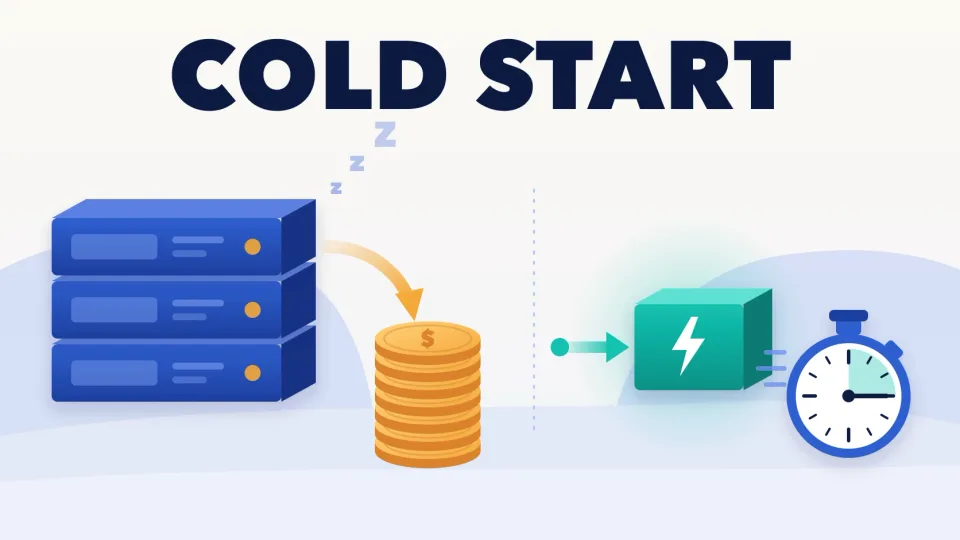
What a cold start is
Cloud Run starts containers when requests arrive and shuts them down when traffic stops. If nobody uses your app, it can go down to zero instances.
When a request arrives and no instance is ready, Cloud Run has to start one. That wait is the cold start [3].
To make it happen less often, Cloud Run can keep an instance idle for up to 15 minutes after it handles a request [3].
If you want to remove cold starts, there's an option called minimum instances (min instances): a number of instances that are always ready. The default is 0 [1].
The catch: you pay for those instances even when nobody uses them [1] [3].
What I found in my bill
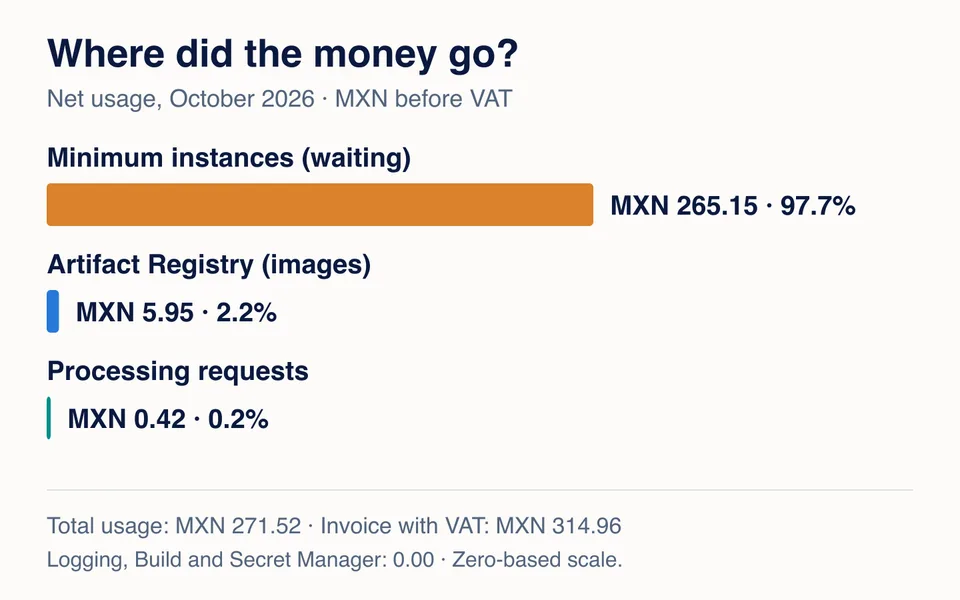
These are October's net costs, with discounts applied and before VAT:
| Item | MXN |
|---|---|
| Minimum instances 97.7% | 265.15 |
| CPU | 161.89 |
| Memory | 103.27 |
| Artifact Registry (container images) 2.2% | 5.95 |
| Processing requests: CPU and memory 0.2% | 0.42 |
| Logging, Cloud Build and Secret Manager | 0.00 |
| Usage before VAT | 271.52 |
| VAT (16%) | 43.44 |
| Total billed | 314.96 |
Two more facts:
- That month, Cloud Run received 4,736 requests.
- The bill already included MXN 92.99 in discounts. Without them, minimum instances would have added up to MXN 357.88.
The breakdown doesn't say which service generated each charge.
Time waiting vs. time working
Cloud Run measures CPU in seconds. I converted those seconds to hours to compare them:
- Minimum instances running: 1,488 vCPU hours.
- CPU processing requests: 25.6 minutes.
For every minute of CPU doing work, I paid for about 58 hours of CPU waiting.
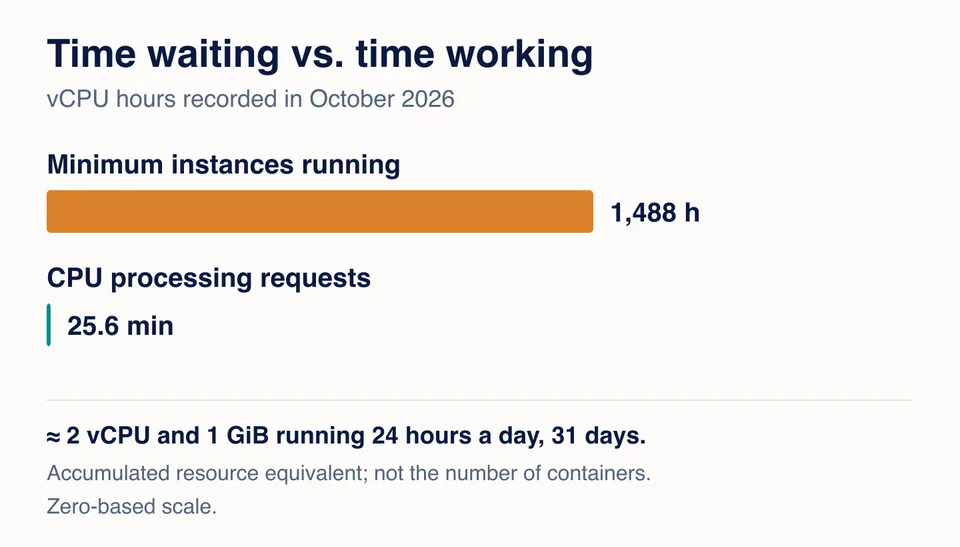
In resources, that's like having about 2 vCPU and 1 GiB of memory running 24 hours a day, for 31 days. It doesn't tell you how many containers there were, only how much added up.
With 4,736 requests in the whole month, waiting a few seconds now and then was acceptable. Avoiding that wait cost me more than 600 times what it cost to process those requests.
How Cloud Run bills you
Cloud Run has two billing modes [2]:
| Request-based (default) | Instance-based | |
|---|---|---|
| When does it bill? | While processing, starting and shutting down | The whole time the instance is alive |
| CPU outside requests | No | Yes |
| Idle minimum instances | Reduced rate | Full rate |
| With minimum at 0 | No charge for waiting | Still bills while the instance is alive |
| Use it for | Irregular or low traffic | Steady traffic or background work |
My charges were request-based. Even at a reduced rate, an instance waiting 24 hours a day adds up fast. Rates vary by region; check them on the pricing page [5].
Which settings to use
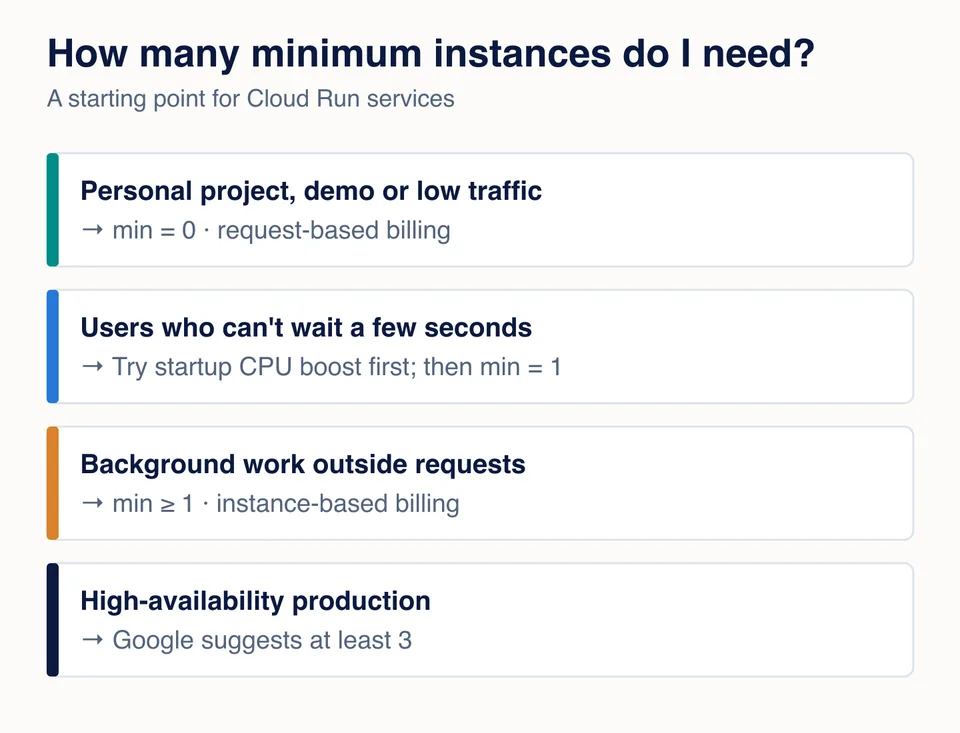
Before you choose, think about one question: what does it cost me if someone waits a few seconds?
1. Check what you have today
gcloud run services describe MY_SERVICE --region MY_REGIONLook for two things [1]:
Scaling: Auto (Min: X, Max: Y): the service-level minimum.Min instances: X: the revision-level minimum.
Check both. If both have a value, Cloud Run uses the higher one.
If you don't use the terminal, open the service in the Cloud Run console and check the scaling section when you edit it.
2. Lower the minimum if you don't need it
# Service level
gcloud run services update MY_SERVICE --region MY_REGION --min 0

# Revision level
gcloud run services update MY_SERVICE --region MY_REGION --min-instances 0
Google recommends setting the minimum at the service level and not combining both levels [1].
3. Make startup faster without paying for waiting
Startup CPU boost gives the instance more CPU while it starts [4]:
gcloud run services update MY_SERVICE --region MY_REGION --cpu-boostTry it before raising the minimum. Measure how long your app takes to start and decide based on that number.
Checklist before deploying to Cloud Run
Save this list. Go through it every time you deploy a new service or change an existing one:
- Traffic: how many requests do you expect per month? If it's only a few, start with a minimum of 0.
- Waiting: what happens if someone waits a few seconds on the first request? If nothing serious happens, don't pay to avoid it.
- Startup: have you tried
--cpu-boost? Do it before raising the minimum. - Background work: does your service do work outside requests? Only then use instance-based billing and a minimum of 1 or more.
- Minimums: what value do you have at the service level and at the revision level? Check both with
gcloud run services describe. - Bill: after the first month, open the breakdown by SKU. If you see
Min Instancewith high costs, go back to step 1.
With a minimum of 0, you will get cold starts. That's part of the deal: you accept an occasional wait of a few seconds in exchange for not paying for idle instances.
Summary
- A cold start is the wait while Cloud Run starts an instance.
- Minimum instances avoid that wait, but you pay for them even when nobody uses your app.
- In October, that was MXN 265.15 of MXN 271.52 of my usage. Handling the requests cost MXN 0.42.
- If your app has low traffic, leave the minimum at 0.
- If startup is slow, try startup CPU boost before paying for running instances.
- Check your bill every month. It quickly shows if something is overcharging you.